
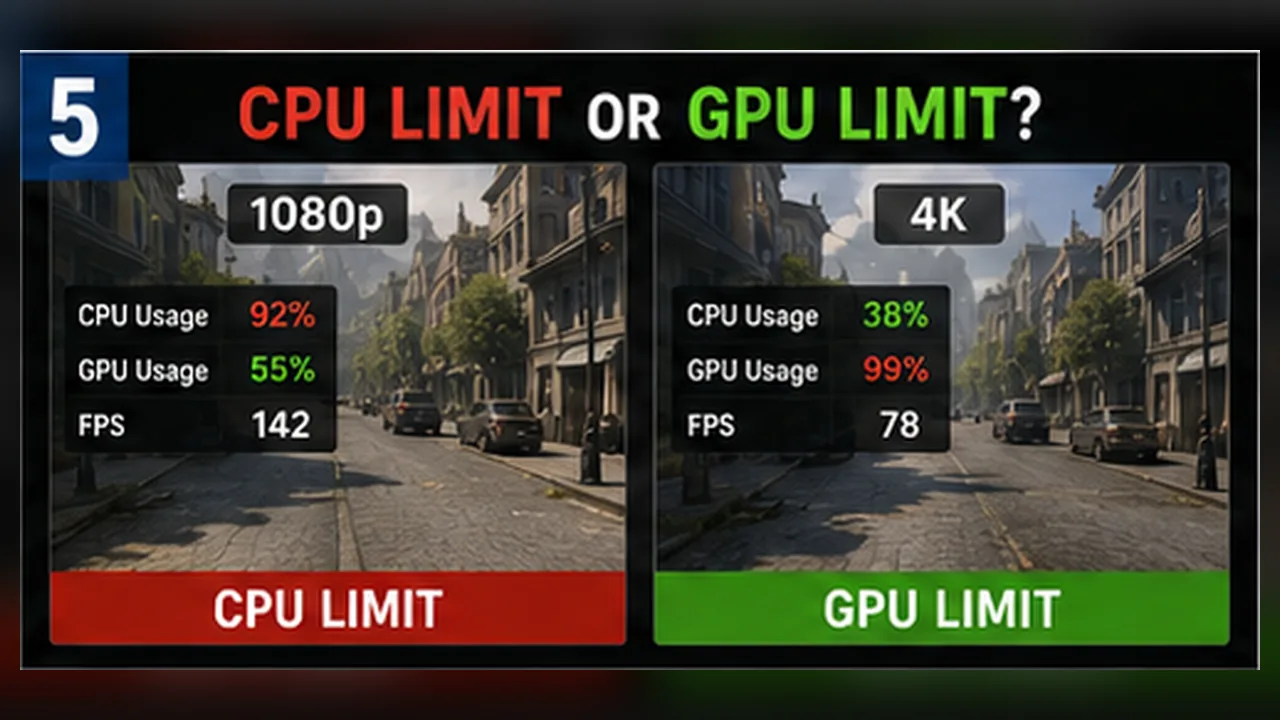
How CPU and GPU Limits Change With Resolution
Learn why the same PC can be CPU-limited at 1080p and GPU-limited at 4K, and how to test the active limit without relying on one percentage.
The limiting part can change
A PC does not have one permanent bottleneck. The active limit depends on the game, scene, resolution, settings, and frame-rate target. At low resolution the GPU finishes frames quickly and the CPU may set the pace. At high resolution the GPU often takes longer and becomes the limit.
Why 1080p can expose CPU limits
Lower resolution reduces pixel work and gives the GPU more headroom. High-refresh competitive settings can then ask the CPU to prepare many frames each second. Simulation, draw calls, AI, physics, and the main game thread become more visible.
Why 4K often exposes GPU limits
4K multiplies pixel work and usually increases pressure from effects, anti-aliasing, and memory bandwidth. The CPU may still prepare frames at a similar rate, but the GPU takes longer to render each one.
Usage percentages need context
A GPU near full use is a strong sign of a graphics limit. CPU use is harder to read because one important thread can be saturated while the total shows 40%. Check per-core activity, frame time, and how FPS reacts to resolution changes.
- A large FPS gain at lower resolution suggests a GPU limit.
- Little change at lower resolution suggests CPU, engine, or frame-cap limits.
- A frame cap can make both parts look underused.
Settings can move the limit
Higher shadows, reflections, ray tracing, and resolution push the GPU. Crowd density, simulation, view distance, and high FPS targets push the CPU. Upscaling can move work away from the GPU and reveal a CPU ceiling that was hidden before.
Use a simple three-step test
Test one demanding route at your normal setup. Then lower resolution dramatically while keeping the quality preset. Finally restore resolution and lower CPU-heavy options. Compare FPS, GPU use, and frame time.
A bottleneck is not automatically a fault. Every frame has a slowest stage. The goal is a stable setup, not a generic percentage.
Use resolution as a diagnostic test
Run the same scene at the same preset in 1080p and then at a higher resolution. If FPS falls sharply and GPU use rises, the GPU is doing most of the limiting work. If FPS barely changes while one or more CPU threads are busy, the game may be limited by the processor, the engine, or a frame cap.
Utilization numbers need context. A GPU at 99% is often normal when it is producing as many frames as it can. A CPU can be the limit even when total CPU use looks modest because one critical thread is full while other cores are not. Look at frame time, per-core activity, and whether lowering graphics settings actually changes the result.
What the diagnosis should help you do
- For a GPU limit, lower resolution, upscaling quality, ray tracing, or heavy visual effects.
- For a CPU limit, reduce crowd, simulation, view-distance, or high-refresh expectations.
- For a frame cap, check V-Sync, menu limits, and external limiters before changing settings.
- Keep the setting that improves the slowest scenes, not only the average counter.