
How Resolution Affects FPS, Image Quality, and GPU Load
See what changes when you move from 1080p to 1440p or 4K, and learn when lowering resolution is the right compromise.
Resolution changes the amount of work
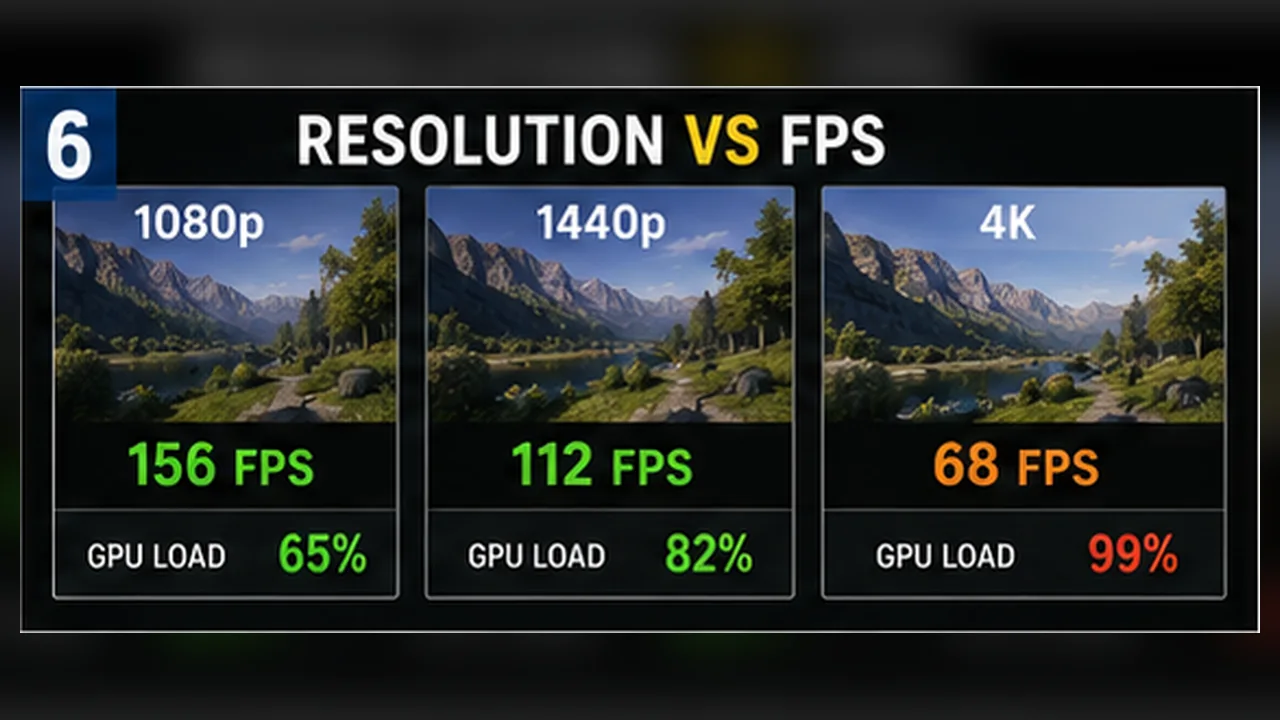
Resolution is the number of pixels rendered for each frame. Moving from 1920×1080 to 2560×1440 increases the pixel count substantially, while 3840×2160 asks the GPU to shade four times as many pixels as 1080p. The FPS change is not perfectly proportional, but more pixels usually mean more GPU work.
Why the FPS drop varies
A GPU-limited game often loses noticeable FPS as resolution rises. A CPU-limited game may change much less because the processor is already setting the pace. Ray tracing, heavy post-processing, and detailed reflections can make the resolution cost steeper.
- High GPU use plus a large resolution penalty points to a GPU limit.
- Similar FPS at several resolutions often points to CPU or engine limits.
- VRAM pressure can create stutter before average FPS collapses.
Image quality is more than pixel count
A higher resolution can sharpen geometry, text, and distant detail, but screen size and viewing distance matter. 1440p on a 27-inch monitor often looks clearly sharper than 1080p, while a small laptop screen may show a smaller difference.
Anti-aliasing, sharpening, and reconstruction quality also affect what you see in motion.
Native resolution, scaling, and upscaling
Native rendering sends one rendered pixel to one display pixel. Resolution scaling renders internally at a lower or higher value. Modern upscalers reconstruct a higher-resolution image from a lower internal resolution and can recover performance with less blur than simple scaling.
Start with a Quality mode. More aggressive modes can help at 4K but may soften fine detail at 1080p.
When lowering resolution helps most
Lower resolution when the GPU is close to full use and you need a clear FPS gain. If GPU use is already modest, reducing resolution may do little. In that case, lower CPU-heavy settings, close background tasks, or accept a lower frame-rate target.
A clean test sequence
Keep the same scene and preset. Test native resolution, then one step lower, then restore native resolution and try a Quality upscaling mode. Record average FPS, 1% lows, GPU use, and how the image looks while moving.
Choose the setting that meets your target without making the image unpleasant on your actual screen.
A practical way to choose a resolution
Start at the monitor’s native resolution and use a sensible preset. Play a demanding, repeatable section for a few minutes. If the GPU stays near full use and the frame rate misses your target, try a quality upscaling mode or one step lower in resolution. Keep the option that improves the slowest moments without making text, foliage, or movement look distracting.
Do not judge only from a still screenshot. Some scaling methods look acceptable while standing still but become soft or unstable in motion. Walk through the same area, turn the camera, and look at fine detail before deciding.
Read the result in context
- A large FPS gain after lowering resolution usually points to a GPU limit.
- Little change across resolutions suggests a CPU, engine, or frame-cap limit.
- New stutter after raising resolution can indicate VRAM pressure, not just lower average FPS.
- The best setting is the one that meets your target on your screen, not the highest label in the menu.