
How Laptop Power Modes, Temperatures, and Charging Affect FPS
Understand why the same laptop can perform differently on battery, in quiet mode, after heat builds up, or with a different charger.
Laptop performance is power-managed
A laptop must balance speed, heat, noise, battery life, and charger capacity. The CPU and GPU therefore operate inside changing power and temperature limits. The same model can produce different FPS depending on the mode and cooling.
Battery mode is usually slower
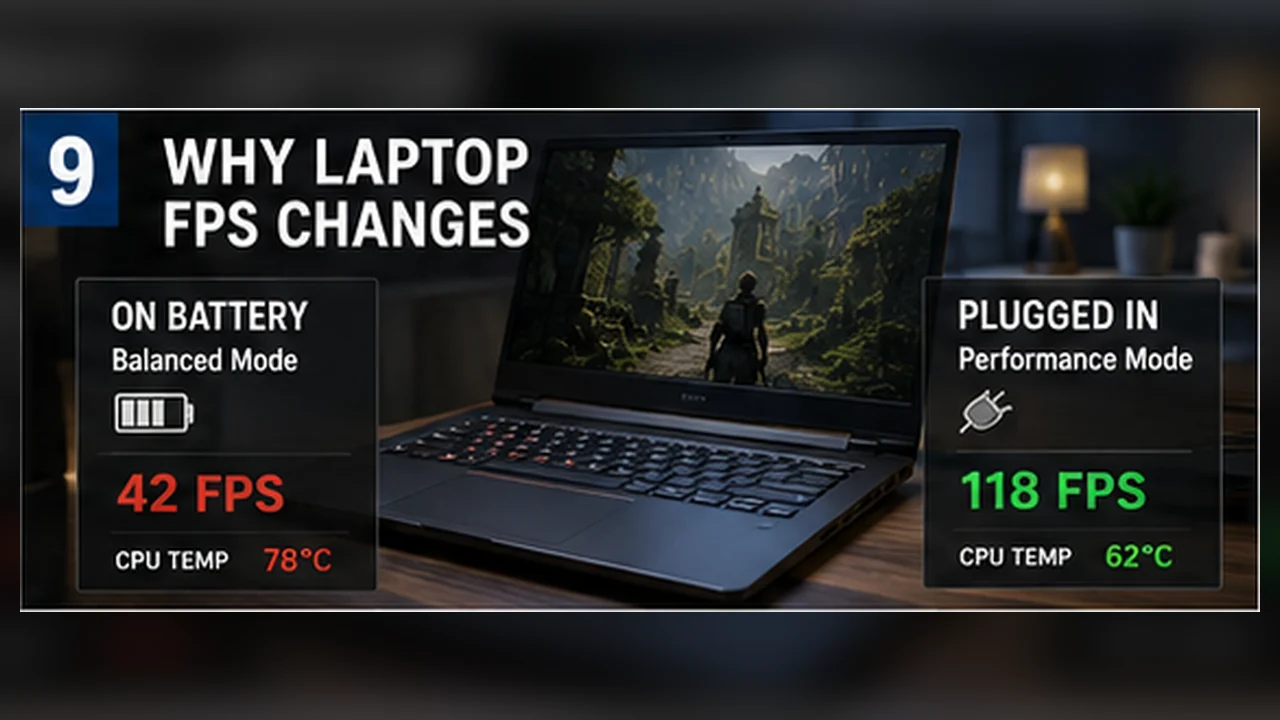
On battery, many laptops reduce CPU and GPU power to protect runtime and battery health. A game may also select integrated graphics or apply a frame cap. Test demanding games while connected to the correct charger unless battery performance is exactly what you want to measure.
Quiet, balanced, and performance modes
Manufacturer software may change power limits, fan curves, and GPU behavior. Quiet mode prioritizes noise. Balanced mode is often a good everyday choice. Performance or turbo mode raises limits and fan speed, but may add noise and heat.
- Use the same mode for every comparison.
- Confirm the game uses the dedicated GPU.
- Keep the original or correctly rated charger connected.
- Do not block intake or exhaust vents.
Heat builds over time
A short run may look excellent before the chassis warms up. After several minutes, clocks may settle lower. Test long enough to reach a stable temperature, especially when comparing a stand, cooling pad, room temperature, or fan profile.
What throttling looks like
Thermal or power throttling often shows as a drop in clock speed and power while temperature or a limit flag rises. FPS may decline gradually or frame time may become less stable. High temperature alone is not proof; the matching clock and power behavior matters.
Run a fair laptop test
Place the laptop on a hard surface, connect the intended charger, choose one power mode, close background apps, and run a repeatable scene until temperatures stabilize. Record CPU and GPU temperatures, clocks, power, FPS, and fan behavior.
Clean vents, update firmware and drivers, and use the intended mode before comparing your result with online tests. Two laptops with the same GPU name can still differ because cooling and configured power are not identical.
Compare modes without overheating the test
Place the laptop on a firm surface, connect the original charger, and let the game run long enough to reach a steady temperature. Test one power profile with the same scene, then allow the machine to cool briefly before trying another. A short test may make every mode look fast because heat has not built up yet.
Watch the result after several minutes. A performance mode may begin with higher FPS but become noisy or settle close to a balanced mode once temperatures rise. The quieter profile may be preferable when it keeps frame times stable. The right choice depends on the game, room temperature, noise tolerance, and whether the system can maintain its clocks.
Useful checks before changing anything
- Keep air vents clear and avoid beds, blankets, or soft surfaces.
- Confirm that the charger is connected and the intended system and vendor power modes are active.
- Measure temperatures, clocks, and frame time during the same repeatable scene.
- Clean external vents carefully; follow the manufacturer’s instructions before opening the laptop.
- Choose the quietest mode that still meets your actual FPS target.