
Which Graphics Settings Affect FPS the Most?
Learn a sensible tuning order for shadows, reflections, volumetrics, textures, ray tracing, view distance, and other common options.
Not every setting costs the same
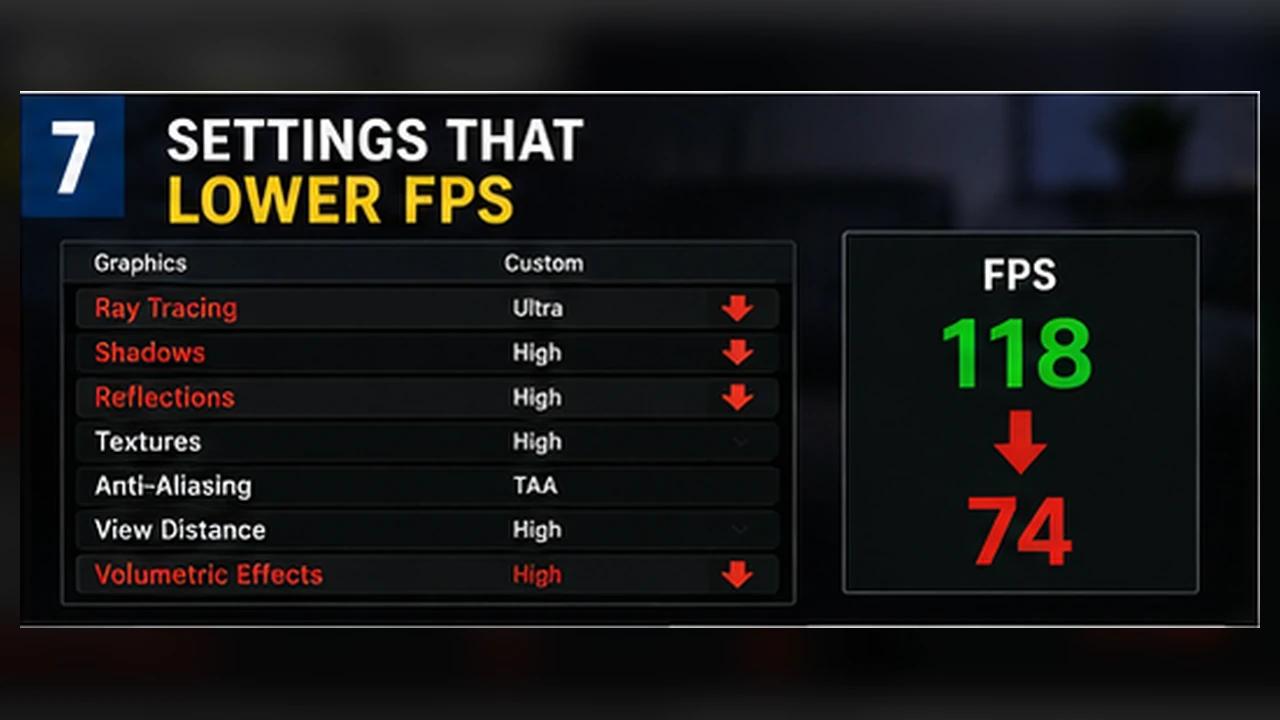
Graphics menus can contain dozens of options, but only a few usually cause the largest changes. The expensive choices depend on the game, yet shadows, reflections, volumetric effects, ray tracing, crowd density, and view distance are common heavy hitters.
Start with a preset, then tune manually
Use Medium or High as a baseline instead of changing every option from scratch. Test a repeatable scene, then alter one setting at a time. This shows which option matters on your hardware.
- Keep resolution fixed while tuning quality.
- Restart the game when an option requires it.
- Watch image quality and frame time, not only average FPS.
- Keep notes so you can return to a stable setup.
GPU-heavy settings
Ray tracing, high-resolution shadows, screen-space reflections, volumetric fog, ambient occlusion, and heavy anti-aliasing often increase GPU time. Lowering them can help when GPU use is near full.
Treat ray tracing as a separate feature set. Test it only after the non-RT setup already meets your frame-rate target.
CPU-heavy settings
Crowd density, simulation quality, object distance, traffic, physics, and some shadow-distance options can increase CPU work. Lowering resolution will not fix a CPU limit, but reducing these settings may.
If FPS barely changes between Low and High while GPU use remains below full load, investigate CPU-heavy options and frame caps.
Textures and VRAM
Texture quality often has a small FPS cost while enough VRAM is available. Once memory pressure becomes high, the game may stutter, load blurry assets, or swap data more often. Choose the highest texture level that fits comfortably, not merely the highest menu label.
A useful tuning order
First disable or reduce ray tracing. Next lower volumetrics, reflections, shadow quality or distance, and heavy ambient effects. Then adjust view distance and crowd settings if the CPU is the limit. Keep textures and anisotropic filtering higher when memory allows.
Stop when the game feels right. Saving 2 FPS is not worth removing a feature you notice constantly.
Use a settings ladder instead of random changes
Begin with a preset that is close to your target, then change one expensive option at a time. Shadows, volumetric effects, reflections, crowd density, view distance, and ray tracing often deserve attention first. Texture quality is different: it may have a small FPS cost while enough VRAM is available, but can cause hitching when memory is exceeded.
After each change, repeat the same area and look at both image quality and frame consistency. A setting that adds little visible benefit but creates heavy drops is an easy compromise. A setting that changes the whole look of the game may be worth keeping even if it costs a few frames.
A sensible order for tuning
- Set resolution and upscaling first, because they affect every frame.
- Reduce ray tracing, volumetrics, shadows, and reflections before cutting textures blindly.
- Lower crowd or simulation settings when the CPU is the likely limit.
- Save a stable profile, then raise one option at a time if there is headroom.