
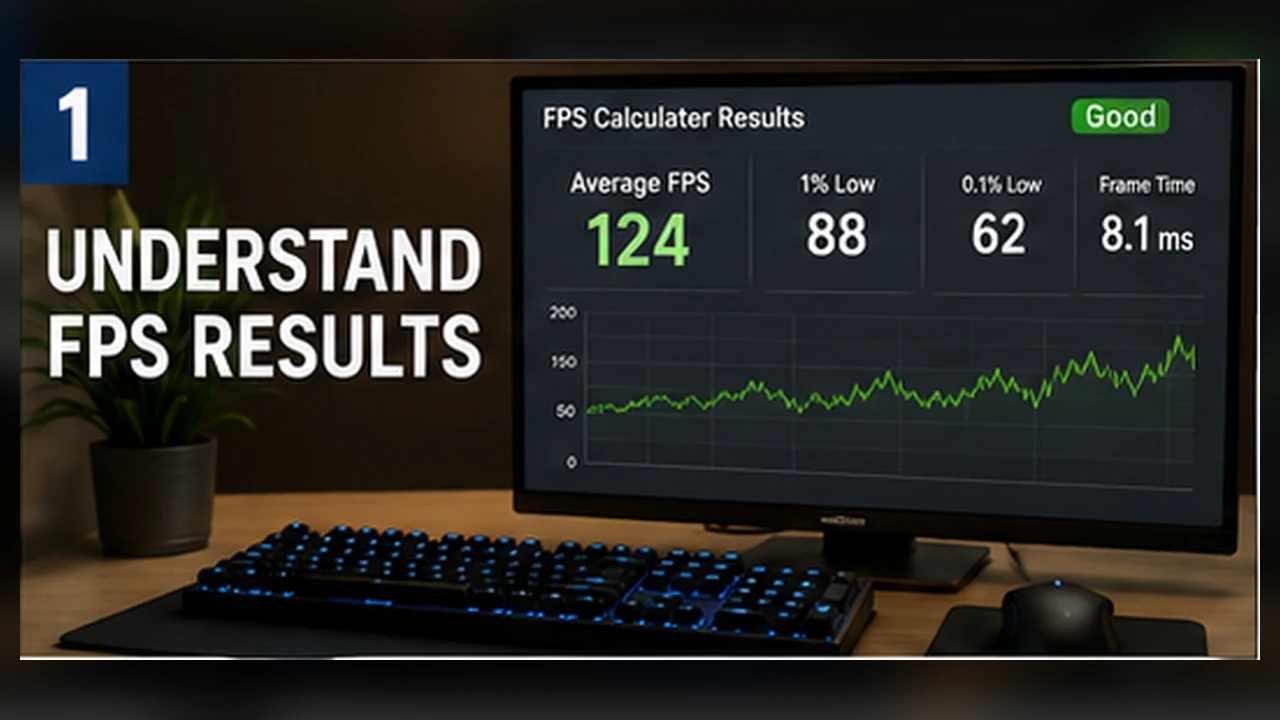
How FPS Calculators Work and How to Read the Result
A plain-language guide to what an FPS calculator can estimate, which inputs matter, and how to turn the result into sensible settings.
What an FPS calculator actually does
An FPS calculator does not run the game on your computer. It compares the hardware and settings you enter with an internal performance model, then produces a likely range. That range is useful for planning and comparing options, not for promising one exact frame-rate number.
Think of it as a map. It can show that 1080p Medium is a safer route than 1440p Ultra, but it cannot see every change caused by a patch, driver, hot laptop, or busy background process.
The inputs that matter most
The game, exact CPU, exact GPU, resolution, graphics preset, and memory capacity form the core of the estimate. The GPU usually carries more work as resolution and visual quality rise. The CPU matters more in simulation-heavy scenes, crowded multiplayer matches, and high-refresh targets.
- Choose the full CPU and GPU model, including laptop variants.
- Use the resolution you will actually play at.
- Pick a realistic preset instead of defaulting to Ultra.
- Enter the RAM installed in the PC, not the motherboard maximum.
Why a range is more honest than one number
A quiet room, a crowded city, and a large battle can produce very different frame times on the same PC. A useful estimate leaves room for that variation. The lower end is more relevant to heavy scenes, while the upper end may describe lighter areas.
Consistency is often more important than the highest number shown. A stable 60 FPS can feel better than an average of 75 FPS with frequent drops.
How to compare two scenarios
Keep every input the same except one. Compare 1080p with 1440p, High with Medium, or one GPU with another while the CPU and game stay fixed. The relative change is usually more useful than the absolute number.
Changing five variables together makes the result hard to interpret because you cannot tell which change caused the difference.
What the model cannot know
No calculator can fully account for cooling, laptop power limits, memory timings, driver behavior, recording software, game updates, or the exact route through a level. A new patch may also change performance before the game profile is updated.
Use the estimate with official requirements, recent game-specific benchmarks, and a short test on the real machine whenever possible.
A practical way to use the result
Start with your intended resolution and a sensible preset. Note the predicted range and the likely limiting component. Then test one lower preset and one lower resolution. Those three scenarios show whether you have room to adjust settings before thinking about hardware.
The better question is not ‘What exact FPS will I get?’ It is ‘Which settings are most likely to meet my target, and what is the main risk?’
A worked example
Suppose the calculator shows a likely range of 55 to 75 FPS at 1440p High. Do not read 75 as the result you will always see. Treat the lower end as a warning for demanding scenes and the upper end as a possibility in lighter areas. If your target is a steady 60 FPS, the estimate says the setup is close, not guaranteed.
Run the same setup again at Medium quality and then at 1080p High. If the Medium result improves clearly but the lower resolution changes little, a CPU or engine limit may be involved. If resolution makes the largest difference, the GPU is probably carrying most of the load.
Three checks before you act on the estimate
A useful result should help you choose a starting point, not push you toward a purchase. Before changing hardware, check whether the input matches the real PC and whether the target is realistic for the game.
- Confirm the exact laptop or desktop CPU and GPU model.
- Compare one variable at a time so the reason for the change stays clear.
- Test the real game with a repeatable scene and keep the settings that feel stable.