
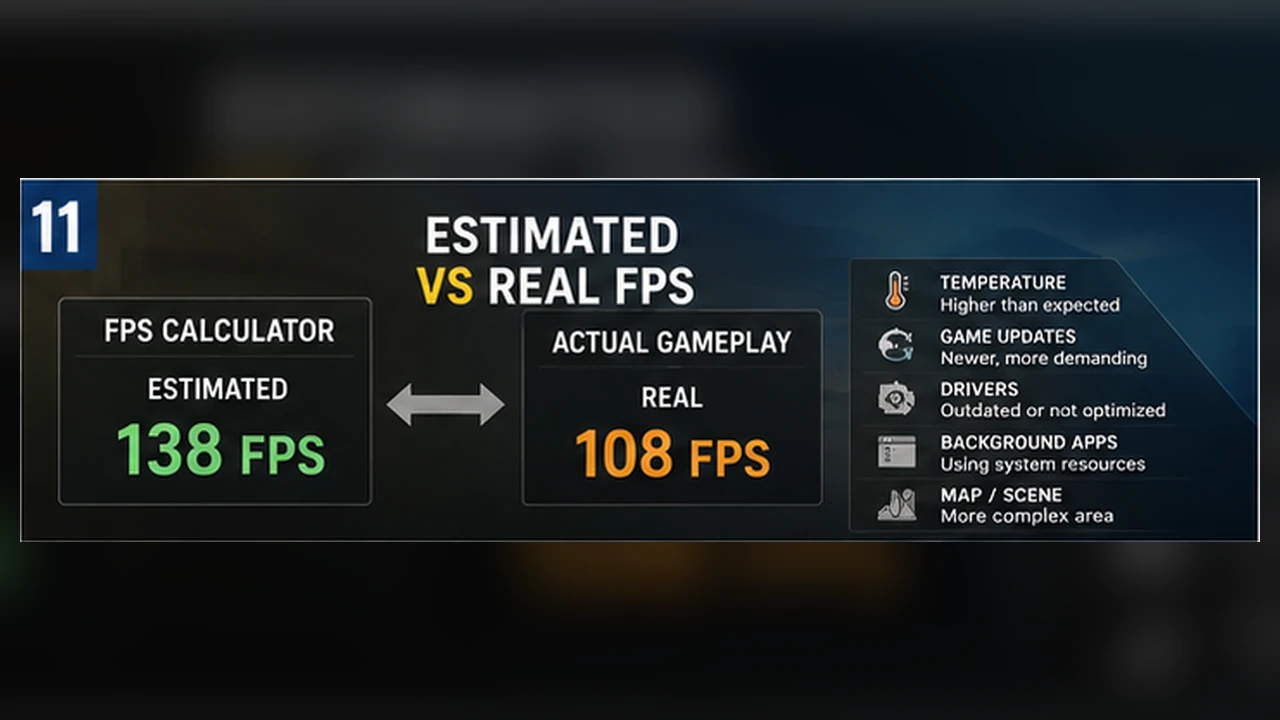
Why Estimated FPS Can Differ From Real Gameplay
Learn why patches, scenes, cooling, drivers, memory, and measurement methods can move real performance away from an estimate.
An estimate describes conditions, not a promise
An FPS estimate assumes a specific game profile, hardware combination, resolution, and quality preset. Your real session adds many details the model cannot fully see. A difference is not automatically an error.
The useful question is whether the measured result falls near the expected range and whether the gap has a clear cause.
The scene can change everything
Games rarely place the same load on every area. A quiet interior may be easy to render, while a crowded hub, large battle, or complex weather effect can stress the CPU and GPU together. Benchmarks that use different routes are not directly comparable.
- Repeat the same route or built-in benchmark.
- Test long enough to include normal variation.
- Record average FPS, 1% lows, and frame time.
Patches and drivers move the baseline
A game update can change shaders, assets, CPU scheduling, or visual quality. A graphics driver can fix one title and create a temporary issue in another. Estimates based on an earlier version may drift until the profile is refreshed.
When a mismatch appears suddenly, check the game version, driver notes, and whether shaders are still compiling.
Cooling and power limits matter
Modern CPUs and GPUs change clock speed according to temperature and available power. A desktop with strong airflow can hold higher clocks than a dusty case. A laptop on battery or in quiet mode can lose substantial performance even though the model name is unchanged.
Test a laptop while plugged in, use the intended performance mode, and watch temperatures and clocks during the run.
Memory and background software create hidden limits
Single-channel memory, low free RAM, browser tabs, recording software, overlays, antivirus scans, and launchers can all affect frame time. The average may look acceptable while short interruptions make the game feel rough.
Close unnecessary tasks and repeat the test before blaming the CPU or GPU.
How to investigate a mismatch
Match the game version, scene, resolution, preset, and upscaling mode. Restart the PC, close background apps, and repeat the same route. If the gap remains, inspect temperatures, clocks, RAM use, GPU use, and frame-time spikes.
Treat the estimate as a starting hypothesis. A repeatable test tells you which real-world factor changes the outcome.
A simple way to trace the gap
Imagine an estimate of 70 to 90 FPS, but the game stays near 60 in a busy city. First repeat the same scene after the shaders have finished compiling. Then check that the resolution, preset, upscaling mode, frame cap, and game version match the estimate. A difference that appears only in one crowded area may be normal scene variation rather than a fault.
If the whole game is slower, look for a consistent cause. A laptop may be using a quiet profile, the GPU may be reaching a temperature or power limit, or another program may be consuming memory. Change one condition, repeat the route, and note whether the frame-time graph becomes smoother.
What to record during a comparison
This small record turns a vague “it feels slower” problem into something you can investigate. It also prevents you from comparing two tests that were never run under the same conditions.
- The exact scene or built-in benchmark used.
- Average FPS, 1% lows, and any visible frame-time spikes.
- GPU use, CPU use, temperatures, and whether clocks remain steady.
- Game version, driver version, power mode, and active overlays.