
How to Find Your Exact PC Specifications on Windows
Find the full CPU, GPU, RAM, storage, Windows, and laptop model details needed before using a performance tool or comparing requirements.
Exact names prevent bad comparisons
‘Intel i7’ and ‘NVIDIA graphics’ are product families, not useful model names. Performance can vary widely inside the same family. Before using a calculator or checking a game requirement, collect the full CPU and GPU names, total RAM, operating system, and storage details.
Use Task Manager for the essentials
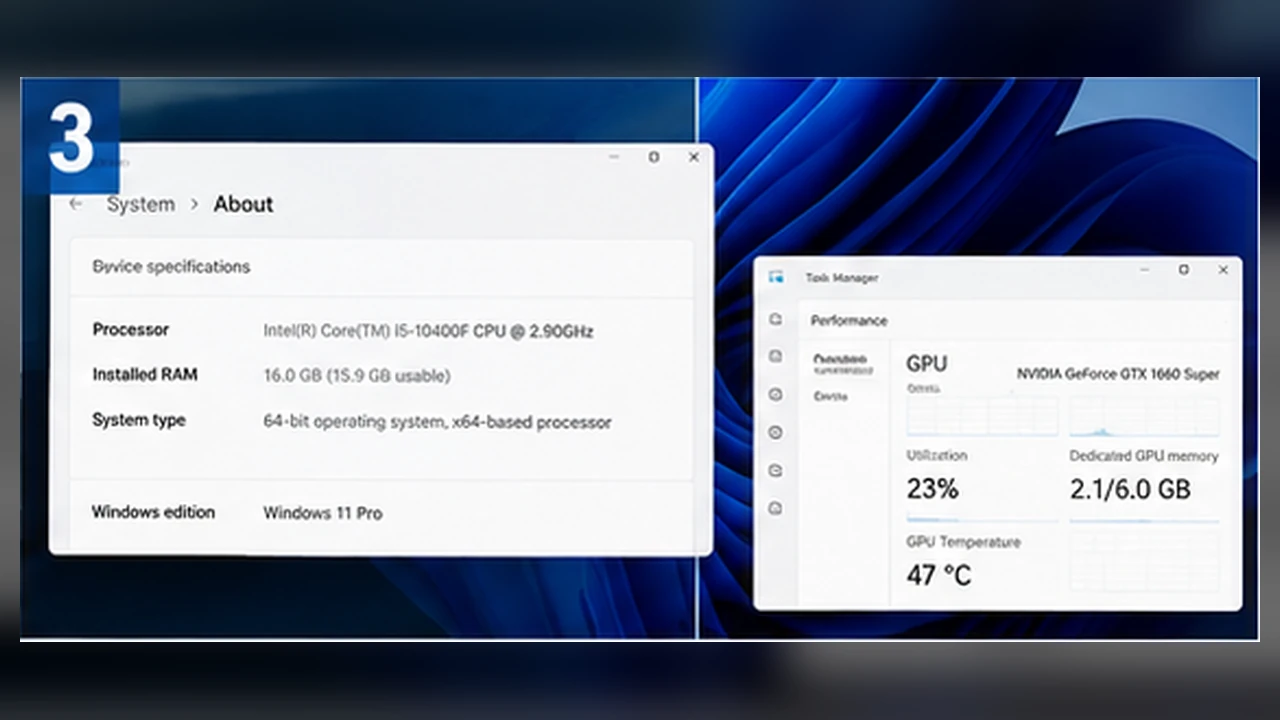
Press Ctrl+Shift+Esc, open Performance, and select CPU, Memory, Disk, and GPU. The top-right corner usually shows the model name. Note every GPU entry because a laptop may list integrated graphics and a separate dedicated GPU.
- CPU: full model name.
- Memory: installed capacity and speed shown.
- GPU: exact name and dedicated memory.
- Disk: drive type and free space.
Use Windows Settings for system details
Open Settings, System, About. This page shows the processor, installed RAM, system type, Windows edition, and version. The system type confirms whether Windows is 64-bit, which many modern games require.
Check the active GPU and driver
Open Device Manager or the GPU control panel to confirm the exact adapter and driver. On laptops, Windows Graphics settings can show which GPU a game is assigned to. A game running on integrated graphics instead of the dedicated chip can explain unexpectedly low FPS.
Identify the laptop or prebuilt model
A laptop model number matters because power limits and cooling vary even when the GPU name is similar. Open System Information and note System Model, or read the label on the underside. For a prebuilt desktop, record the manufacturer and model as well as the internal parts.
Build one clean specification note
Keep a short note containing CPU, GPU, RAM, display resolution and refresh rate, drive type and free space, Windows version, and laptop or desktop model. You can paste the same note into a calculator or support request.
Browser-based detection cannot always identify the exact hardware because browsers restrict access. Treat automatic results as a convenience and confirm them in Windows.
Cross-check the names before using a tool
Windows may show several graphics devices, especially on a laptop with integrated and dedicated graphics. Record the full name of the GPU used for games, not only the display adapter that appears first. For the processor, include the complete model suffix because mobile, low-power, and desktop versions can behave differently.
If Task Manager and the manufacturer’s product page disagree, use the model shown by the operating system and confirm it in Device Manager or the DirectX Diagnostic Tool. Also note installed RAM, Windows version, storage type, and free space. These details explain many mismatches that a short label such as “Core i7 with NVIDIA graphics” hides.
Make a small specification note
Keep this note for future checks. It prevents repeated guessing and makes comparisons with official requirements much more reliable.
- CPU: complete model name and whether the PC is a laptop or desktop.
- GPU: exact dedicated or integrated model, including laptop variants.
- Memory: installed capacity and, when known, whether both channels are in use.
- Display: native resolution and refresh rate.
- Storage: SSD or hard drive, plus enough free space for the game and updates.