
How to Troubleshoot Stuttering and Poor 1% Lows
Average FPS can look fine while a game still feels rough. Use frame time, temperatures, memory, storage, and repeatable tests to find the cause.
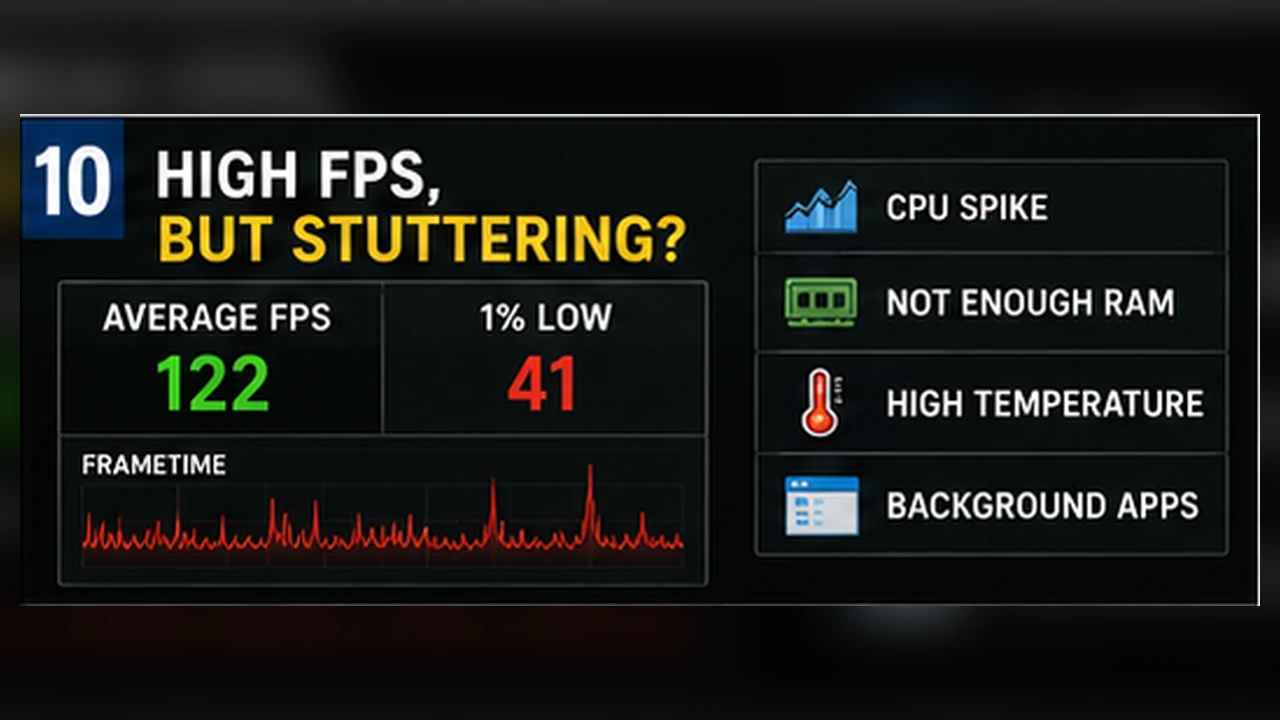
Stutter is a frame-time problem
Average FPS compresses a whole run into one number. A game at 80 FPS can still feel bad if individual frames take much longer than the rest. A frame-time graph makes those interruptions visible as spikes.
Create a repeatable test
Use the same area, route, camera movement, and duration. Restart the game before major comparisons. Change one variable at a time and keep notes.
- Record average FPS, 1% lows, and frame time.
- Wait until shaders finish compiling.
- Do not compare a menu with a busy gameplay scene.
- Run at least two passes to spot one-off events.
Rule out background interruptions
Close browsers, launchers that are updating, recording tools, overlays, RGB utilities, and scans. Check Task Manager for sudden CPU, memory, or disk activity. A short background spike can create a visible hitch even when the GPU is fast.
Check memory and storage
If RAM is nearly full, Windows may move data to the page file. If VRAM is full, the game may swap textures and assets. A slow or nearly full drive can make streaming worse. Lower texture quality, close applications, and leave free storage before testing again.
Watch temperatures and clocks
Thermal throttling often appears after several minutes, not at launch. Log CPU and GPU temperature, frequency, power, and use during a long run. A clock drop that matches a frame-time spike is a useful clue.
Know when the game is the limit
Some stutter comes from shader compilation, asset streaming, autosaves, or transitions between zones. If the same hitch remains after clean tests, sensible settings, and several driver versions, the issue may be in the game.
Document the route and metrics clearly before reporting it. That evidence is more useful than saying only that the game ‘lags.’
First identify what kind of interruption you see
Frame stutter, network lag, and input delay can feel similar but need different fixes. Frame stutter usually appears as a spike in frame time or a visible hitch while the game world continues. Network problems may show delayed movement, rubber-banding, or a warning icon even when local FPS is steady. Input delay can rise when the GPU is saturated or when frame generation and buffering settings change.
Use an offline or training area when possible. Repeat the same route after shader compilation has settled. If a hitch always happens at the same doorway or map transition, asset streaming or traversal may be involved. If it appears randomly, watch background tasks, temperatures, memory use, and storage activity.
A low-risk troubleshooting order
- Restart the game and let shader compilation finish before judging the first run.
- Disable unnecessary overlays and recording tools for one comparison test.
- Check that the game is on the intended drive and that enough free space remains.
- Cap FPS slightly below an unstable peak and compare frame-time consistency.
- Change one setting or system condition at a time, then repeat the same scene.